
概要
前回の記事で、Claude君を使ってDB周りを開発していました。テストコードを実行しようとした際、エラーに見舞われました。これが意外としぶとい感じで、Claude君に聞いても解決しそうになかったです。というのも、こちら側の知識が足りないor伝え方が悪いため意図を汲んでくれない感じでした。丸投げもよくないということがわかりましたね。
前回の記事→こちら
ということで、今回は前回の記事で出ていたエラーを解消するまでを記事にしてみました。「そんなのどうでもいいからソースコードだけくれよ」という方はこの記事の最後に載せておりますので、そちらまで飛んでください (∀`*ゞ)テヘッ
使用環境
- Windows 11
- Google Gemini (無料枠)
- Claude (無料プラン)
- ChatGPT (無料版)
チャッピーも増やしてみました。いろいろ選択肢を増やして聞いていこうと思います。今回もあくまで無料で挑戦していきます。
エラーとの闘い
あの後いろいろと弄っていたら、gradleでキャッシュが壊れているというエラーが出てうんともすんとも行かなくなりました。そのため、プロジェクトを最初から作り直して、前回の記事を基に途中まで戻してきました。「テストをしてみる」内の「com.example.yourapp」→「com.example.karaokememo」に変えたところまでです。そこから再チャレンジです。
エラー1:GradleとKSPのバージョン不整合
MainActivity.ktの中身をテスト用に変更した後、それぞれのファイル内で「com.example.yourapp」→「com.example.karaokememo」に修正しました。その後に「Sync Now」を行うと以下のエラーが出ました。
Using kotlin.sourceSets DSL to add Kotlin sources is not allowed with built-in Kotlin.
Kotlin source set 'debug' contains: [C:\Users\akati\AndroidStudioProjects\KaraokeMemo2\app\build\generated\ksp\debug\kotlin, C:\Users\akati\AndroidStudioProjects\KaraokeMemo2\app\build\generated\ksp\debug\java]
Solution: Use android.sourceSets DSL instead.
For more information, see https://developer.android.com/r/tools/built-in-kotlin
To suppress this error, set android.disallowKotlinSourceSets=false in gradle.properties.
このエラーをそのままClaude君に投げてみました。
プロンプトはこちらです。
Android Studioで開発をしているのですが、以下のエラーが出て何もできなくなってしましました。

Using kotlin.sourceSets DSL to add Kotlin sources is not allowed with built-in Kotlin.
Kotlin source set 'debug' contains: [C:\Users\akati\AndroidStudioProjects\KaraokeMemo2\app\build\generated\ksp\debug\kotlin, C:\Users\akati\AndroidStudioProjects\KaraokeMemo2\app\build\generated\ksp\debug\java]
Solution: Use android.sourceSets DSL instead.
For more information, see https://developer.android.com/r/tools/built-in-kotlin
To suppress this error, set android.disallowKotlinSourceSets=false in gradle.properties.
そして回答は以下でした。
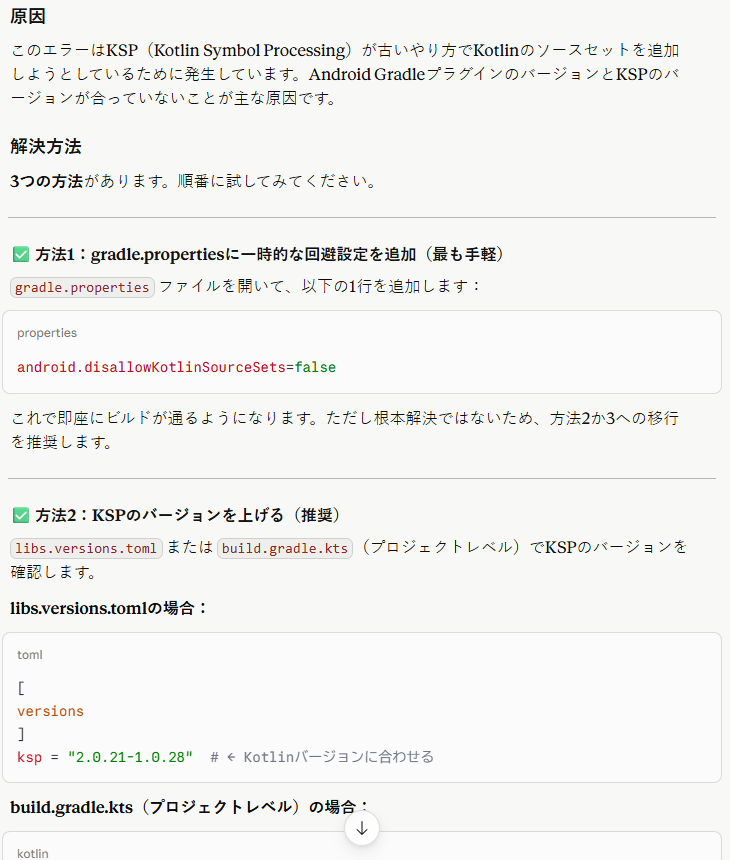
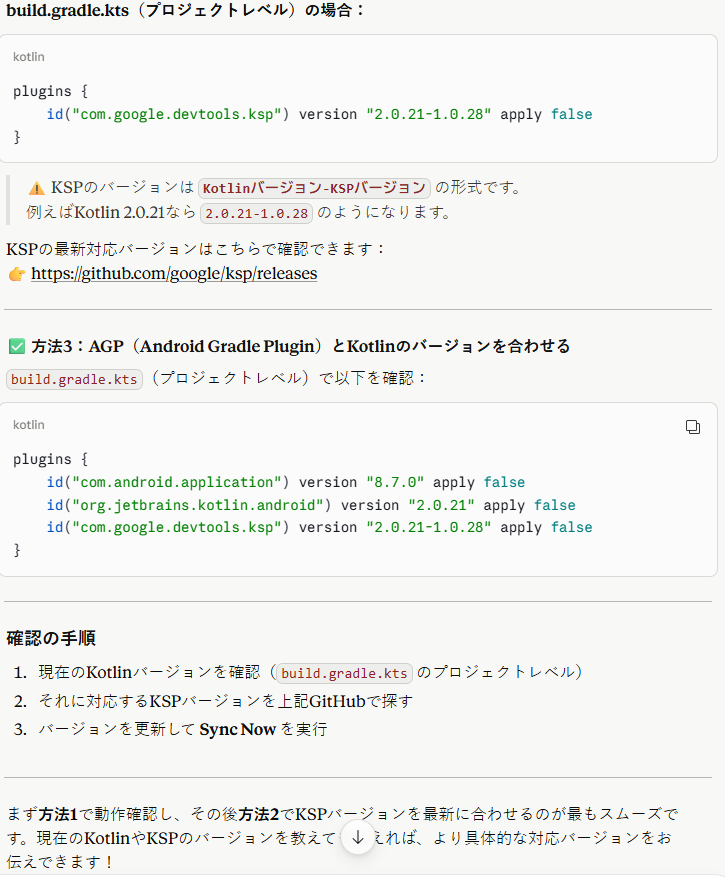
もらった回答に従って、gradle.properties, build.gradle.kts(Project)を変更します。
1.gradle.propertiesの末尾に追加
android.disallowKotlinSourceSets=falseこのコードを追記します。
2.build.gradle.kts(Project)
libs.versions.tomlを確認したところ、kotlin == “2.2.10”でした。それに合わせて、build.gradle.kts(Project)ファイルを変更します。よくよく前の記事を見返したらkotlinのバージョンを合わせていなかったですね。。。(;’∀’)
kotlinのバージョンに合わせたKSPを探すために、GitHubのリリースを確認します。
GitHub URL: https://github.com/google/ksp/releases
よいしょよいしょと遡りますと、それっぽいものを発見!
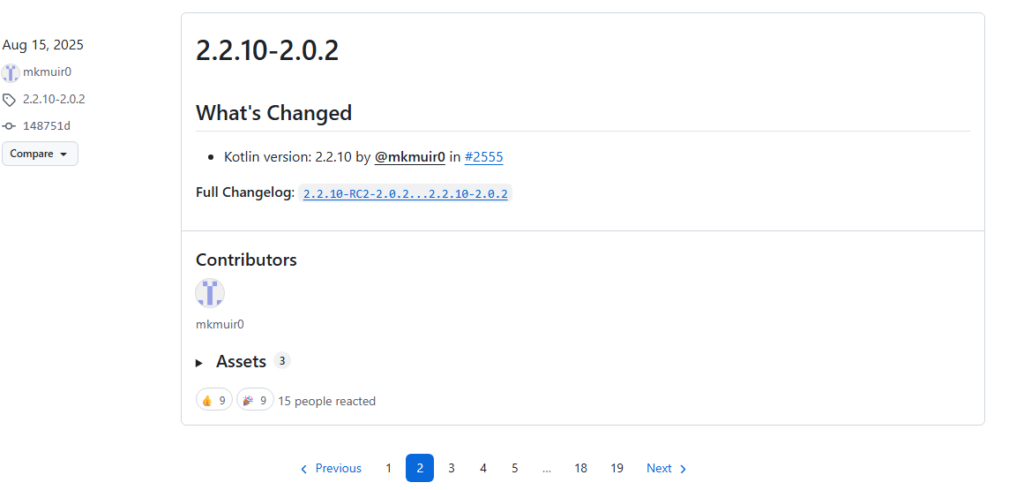
これを指定しましょうか。build.gradle.kts(Project)内のid~部分を以下に変更しました。
id("com.google.devtools.ksp") version "2.2.10-2.0.2" apply falseそして、「Sync Now」….
通りました!
そして、「Run」….
次のエラーが出ました…壁は高い
エラー2:KSPの既知の不具合
次に出たエラーがこちらです。
[ksp] java.lang.IllegalStateException: unexpected jvm signature V
これに関しては、Claude君などに聞かずGoogle先生に聞いてしまいました。何故でしょうか。気分です。
そして、それっぽいものを発見しました!
参考: [ksp] java.lang.IllegalStateException: unexpected jvm signature V#2177
中身をささっと読んでみますと、Roomのバージョンでこのバグが出ているとのこと。でも、修正済みのバージョン以降を使えば大丈夫らしい。
ということで、build.gradle.kts(app)内、dependencies項目で使用していたRoomのバージョンを2.6.1→2.8.4に変更します。
implementation("androidx.room:room-runtime:2.8.4")
implementation("androidx.room:room-ktx:2.8.4")
ksp("androidx.room:room-compiler:2.8.4")変更後、「Sync Now」して「Run」をします!
はてさて次のエラーです。。。
エラー3:依存関係によるAndroid APIのバージョン不整合
次に出たエラーがこちらです。長いですね。
2 issues were found when checking AAR metadata:
1. Dependency 'androidx.core:core-ktx:1.19.0' requires libraries and applications that
depend on it to compile against version 37 or later of the
Android APIs.
:app is currently compiled against android-36.1.
Recommended action: Update this project to use a newer compileSdk
of 37.
Note that updating a library or application's compileSdk (which
allows newer APIs to be used) can be done separately from updating
targetSdk (which opts the app in to new runtime behavior) and
minSdk (which determines which devices the app can be installed
on).
2. Dependency 'androidx.core:core:1.19.0' requires libraries and applications that
depend on it to compile against version 37 or later of the
Android APIs.
:app is currently compiled against android-36.1.
Recommended action: Update this project to use a newer compileSdk
of 37.
Note that updating a library or application's compileSdk (which
allows newer APIs to be used) can be done separately from updating
targetSdk (which opts the app in to new runtime behavior) and
minSdk (which determines which devices the app can be installed
on).
これもClaude君にそのままエラーが出たと投げました。すると以下の回答でした。
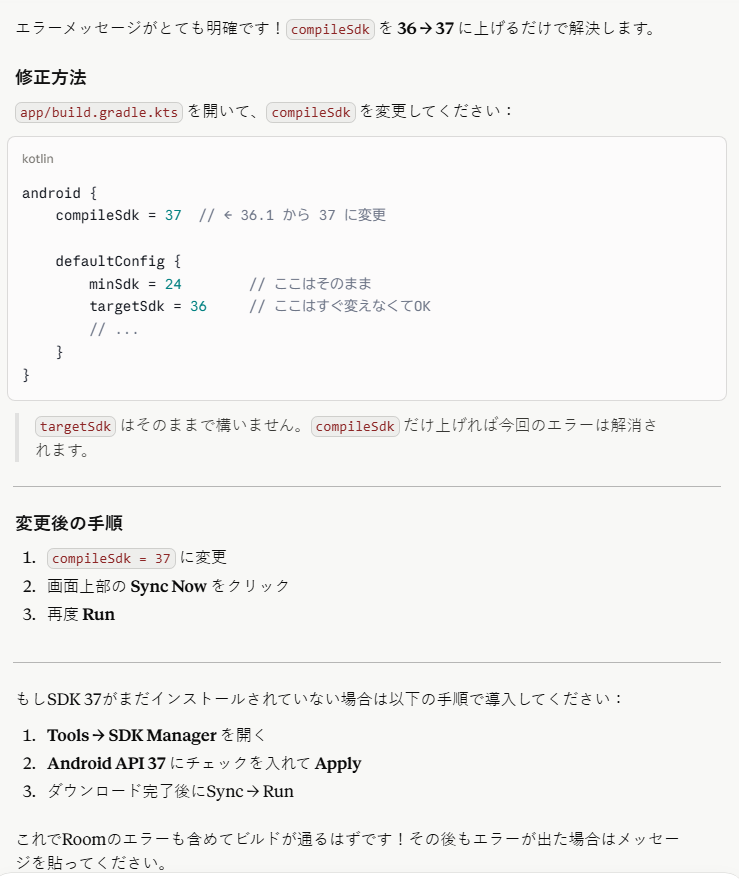
SDKのバージョンを上げないと、android.core:xxxxを使えないということですね。ということで、Claude君に従いまして、compileSdk=37にします。が、提示している内容と自環境が少し違うので注意でした。android内のcompileSdkを以下に変更します。
compileSdk {
version = release(37) {
minorApiLevel = 1
}
}変更後、「Sync Now」と「Run」してみます。
エラーです。。。
エラー4:要求しているSDKがローカル環境にない
次に出たエラーがこちらでした。
Failed to find Platform SDK with path: platforms;android-37.1
単純明快で、そもそもそんなSDKが見つからないよ。ということですね。ということで、SDK 37バージョンをインストールします。
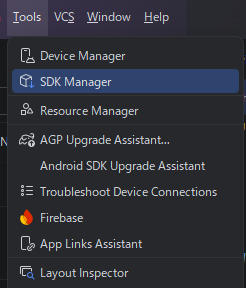
まず、Tools > SDK Manager をクリックします(左図)。そして、API Level 37.0のAndroid 17.0を選択しました。
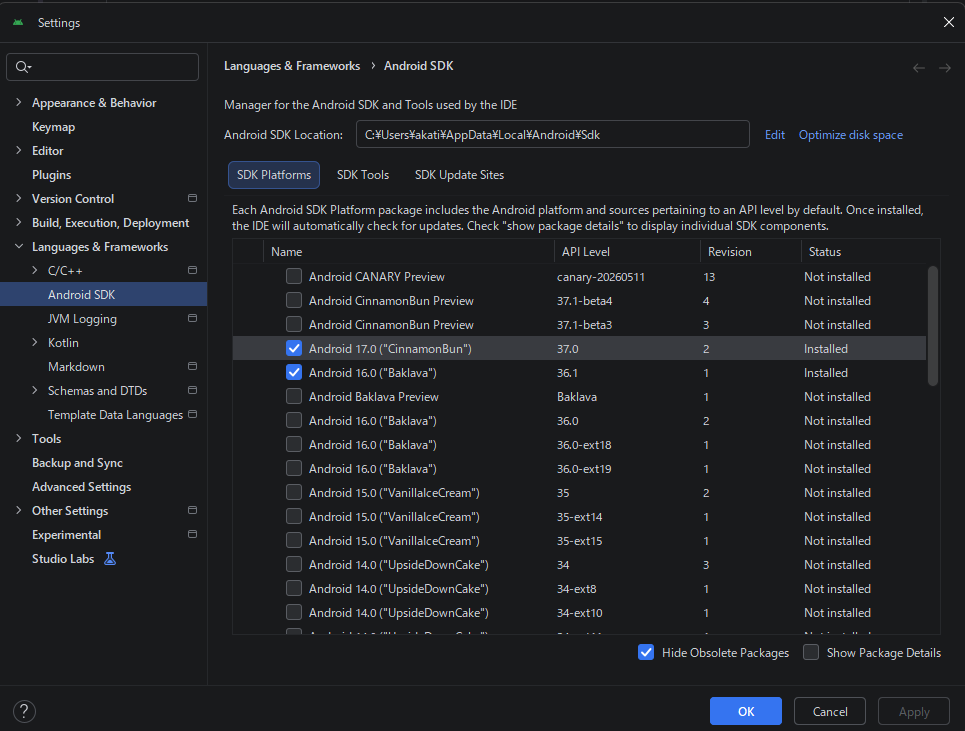
インストールし、念のためプロジェクトを再起動します。そして、SDKのバージョン指定も少し変更しておきます。
compileSdk {
version = release(37) {
minorApiLevel = 0
}
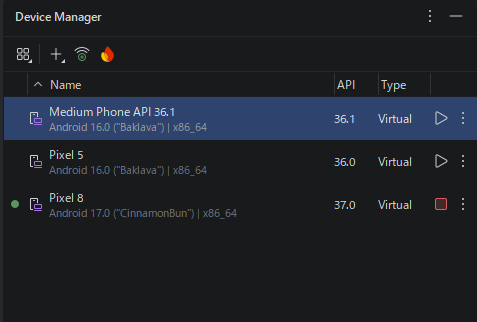
}最後に、Device Manager で、API Level 37.0を動かせるAndroid 17.0を追加しておきます。
私は「Pixel 8」を追加しました。
これで実行してみます!
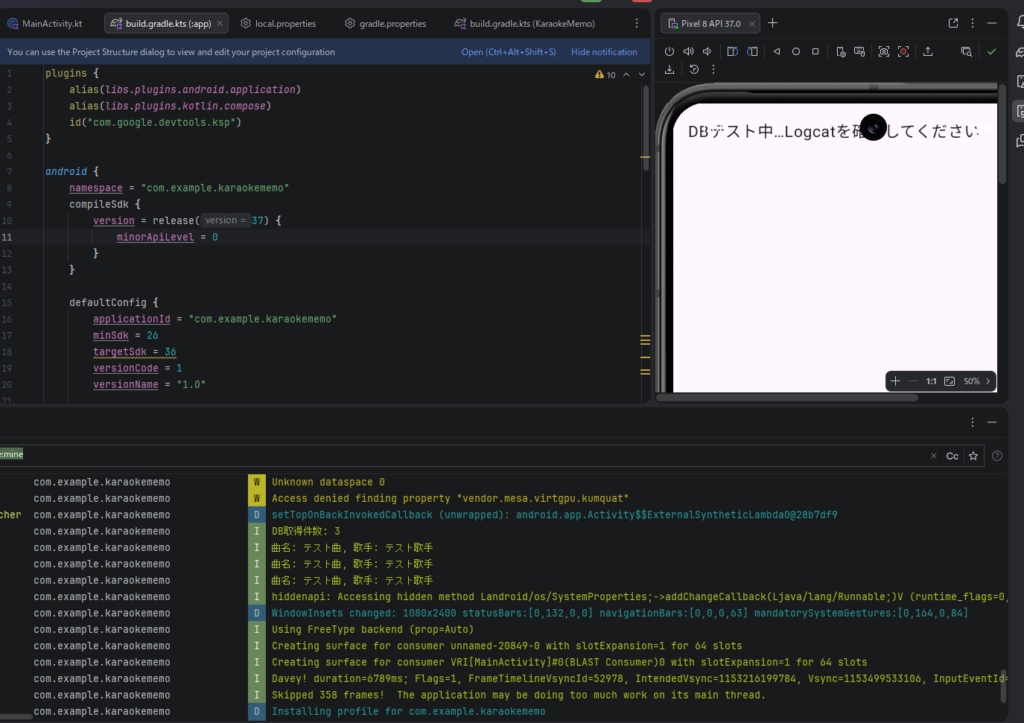
お!ようやく動きました!!
画面下部にあるLogcatも表示させると、「DB取得件数: 3」や「曲名: テスト曲, 歌手: テスト歌手」と表示されています!!ようやくDBの接続が確認できました。
まとめ
前回エラーで足踏みになりましたが、今回でようやくDBの接続テストができました。
エラーに入ったらある程度の知識と立ち止まって考えてみることが大事ですね。最近話題になってきているAIエージェントを使いながらプログラム係とデバッグ係など専門分けすることで効率よく回す方法ももちろんありますが、今回泥臭くやりました。面倒くさいという経験大事だなと思います。
次回からはUIを作っていこうと思います。
ではでは、次の記事で!
コピペ用はこちら
libs.versions.toml
[versions]
agp = "9.2.1"
coreKtx = "1.19.0"
junit = "4.13.2"
junitVersion = "1.3.0"
espressoCore = "3.7.0"
lifecycleRuntimeKtx = "2.10.0"
activityCompose = "1.13.0"
kotlin = "2.2.10"
composeBom = "2026.02.01"
[libraries]
androidx-core-ktx = { group = "androidx.core", name = "core-ktx", version.ref = "coreKtx" }
junit = { group = "junit", name = "junit", version.ref = "junit" }
androidx-junit = { group = "androidx.test.ext", name = "junit", version.ref = "junitVersion" }
androidx-espresso-core = { group = "androidx.test.espresso", name = "espresso-core", version.ref = "espressoCore" }
androidx-lifecycle-runtime-ktx = { group = "androidx.lifecycle", name = "lifecycle-runtime-ktx", version.ref = "lifecycleRuntimeKtx" }
androidx-activity-compose = { group = "androidx.activity", name = "activity-compose", version.ref = "activityCompose" }
androidx-compose-bom = { group = "androidx.compose", name = "compose-bom", version.ref = "composeBom" }
androidx-compose-ui = { group = "androidx.compose.ui", name = "ui" }
androidx-compose-ui-graphics = { group = "androidx.compose.ui", name = "ui-graphics" }
androidx-compose-ui-tooling = { group = "androidx.compose.ui", name = "ui-tooling" }
androidx-compose-ui-tooling-preview = { group = "androidx.compose.ui", name = "ui-tooling-preview" }
androidx-compose-ui-test-manifest = { group = "androidx.compose.ui", name = "ui-test-manifest" }
androidx-compose-ui-test-junit4 = { group = "androidx.compose.ui", name = "ui-test-junit4" }
androidx-compose-material3 = { group = "androidx.compose.material3", name = "material3" }
[plugins]
android-application = { id = "com.android.application", version.ref = "agp" }
kotlin-compose = { id = "org.jetbrains.kotlin.plugin.compose", version.ref = "kotlin" }
build.gradle.kts(:app)
plugins {
alias(libs.plugins.android.application)
alias(libs.plugins.kotlin.compose)
id("com.google.devtools.ksp")
}
android {
namespace = "com.example.karaokememo"
compileSdk {
version = release(37) {
minorApiLevel = 0
}
}
defaultConfig {
applicationId = "com.example.karaokememo"
minSdk = 26
targetSdk = 36
versionCode = 1
versionName = "1.0"
testInstrumentationRunner = "androidx.test.runner.AndroidJUnitRunner"
}
buildTypes {
release {
isMinifyEnabled = false
proguardFiles(
getDefaultProguardFile("proguard-android-optimize.txt"),
"proguard-rules.pro"
)
}
}
compileOptions {
sourceCompatibility = JavaVersion.VERSION_11
targetCompatibility = JavaVersion.VERSION_11
}
buildFeatures {
compose = true
}
}
dependencies {
implementation(platform(libs.androidx.compose.bom))
implementation(libs.androidx.activity.compose)
implementation(libs.androidx.compose.material3)
implementation(libs.androidx.compose.ui)
implementation(libs.androidx.compose.ui.graphics)
implementation(libs.androidx.compose.ui.tooling.preview)
implementation(libs.androidx.core.ktx)
implementation(libs.androidx.lifecycle.runtime.ktx)
testImplementation(libs.junit)
androidTestImplementation(platform(libs.androidx.compose.bom))
androidTestImplementation(libs.androidx.compose.ui.test.junit4)
androidTestImplementation(libs.androidx.espresso.core)
androidTestImplementation(libs.androidx.junit)
debugImplementation(libs.androidx.compose.ui.test.manifest)
debugImplementation(libs.androidx.compose.ui.tooling)
// Room Database
implementation("androidx.room:room-runtime:2.8.4")
implementation("androidx.room:room-ktx:2.8.4")
ksp("androidx.room:room-compiler:2.8.4")
// ViewModel & LiveData
implementation("androidx.lifecycle:lifecycle-viewmodel-compose:2.7.0")
// Compose (すでに入っているはずですが念のため)
implementation("androidx.compose.material3:material3:1.2.0")
implementation("androidx.navigation:navigation-compose:2.7.6")
}build.gradle.kts(KaraokeMemo)
plugins {
    alias(libs.plugins.android.application) apply false
    alias(libs.plugins.kotlin.compose) apply false
    id("com.google.devtools.ksp") version "2.2.10-2.0.2" apply false
}gradle.properties
# Project-wide Gradle settings.
# IDE (e.g. Android Studio) users:
# Gradle settings configured through the IDE *will override*
# any settings specified in this file.
# For more details on how to configure your build environment visit
# http://www.gradle.org/docs/current/userguide/build_environment.html
# Specifies the JVM arguments used for the daemon process.
# The setting is particularly useful for tweaking memory settings.
org.gradle.jvmargs=-Xmx2048m -Dfile.encoding=UTF-8
# When configured, Gradle will run in incubating parallel mode.
# This option should only be used with decoupled projects. For more details, visit
# https://developer.android.com/r/tools/gradle-multi-project-decoupled-projects
# org.gradle.parallel=true
# Kotlin code style for this project: "official" or "obsolete":
kotlin.code.style=official
android.disallowKotlinSourceSets=falseMainActivity.kt
package com.example.karaokememo

import android.os.Bundle
import androidx.activity.ComponentActivity
import androidx.activity.compose.setContent
import androidx.compose.foundation.layout.*
import androidx.compose.material3.*
import androidx.compose.runtime.*
import androidx.compose.ui.Modifier
import androidx.compose.ui.unit.dp
import com.example.karaokememo.data.Song
import com.example.karaokememo.data.SongDatabase
import kotlinx.coroutines.CoroutineScope
import kotlinx.coroutines.Dispatchers
import kotlinx.coroutines.flow.first
import kotlinx.coroutines.launch

class MainActivity : ComponentActivity() {
    override fun onCreate(savedInstanceState: Bundle?) {
        super.onCreate(savedInstanceState)

        val db = SongDatabase.getDatabase(this)
        val dao = db.songDao()

        // テスト用:DB書き込み&読み込み
        CoroutineScope(Dispatchers.IO).launch {
            // 1件追加
            dao.insert(Song(title = "テスト曲", artist = "テスト歌手", category = "my_songs"))

            // 取得して確認
            val songs = dao.getSongsByCategoryAndQuery("my_songs", "").first()
            println("DB取得件数: ${songs.size}")
            songs.forEach { println("曲名: ${it.title}, 歌手: ${it.artist}") }
        }

        setContent {
            MaterialTheme {
                Surface(modifier = Modifier.fillMaxSize()) {
                    Text("DBテスト中…Logcatを確認してください", modifier = Modifier.padding(16.dp))
                }
            }
        }
    }
}
コメントを残す